PDF guide
How to convert PDF to CSV and keep your table data useful
Extract selectable PDF text into CSV, understand page outputs and check columns, dates and numbers before using your data.
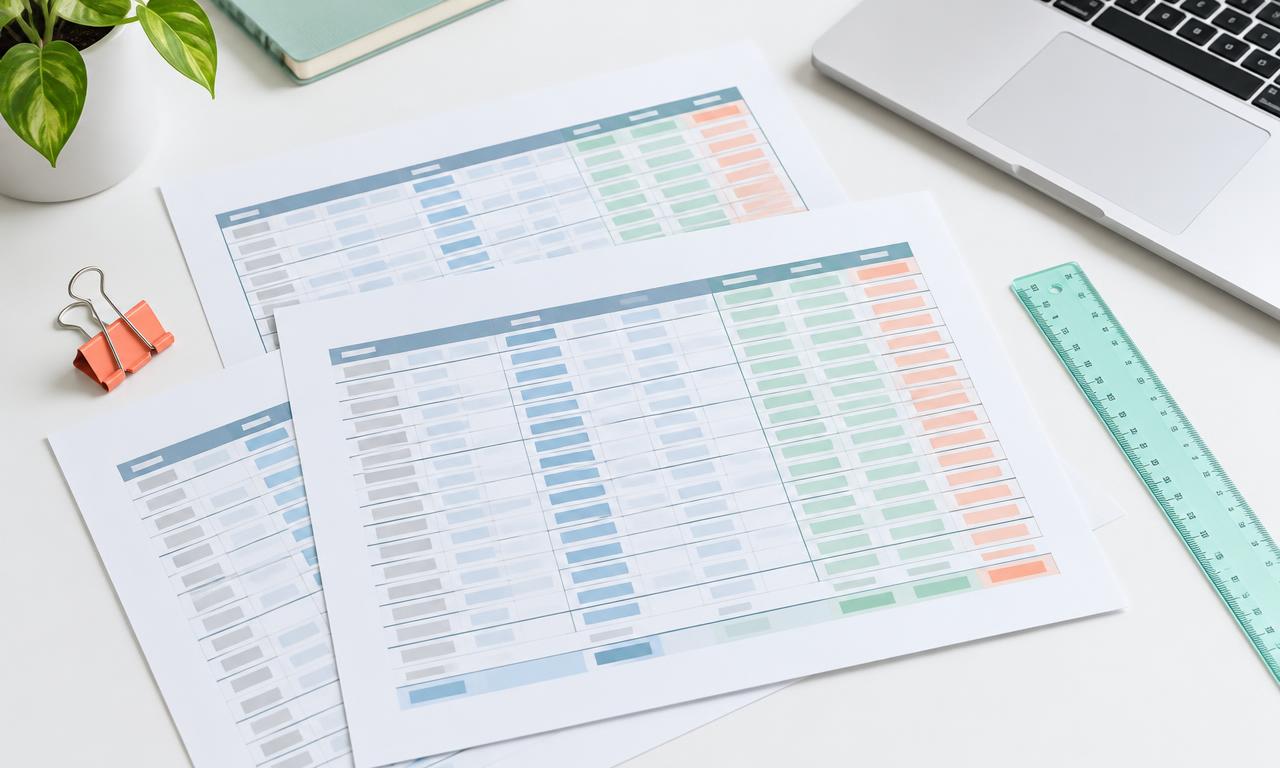
A PDF is designed to preserve how a page looks. A CSV is designed to hold rows and columns of plain text. Converting between them is useful for taking a table from a report into a spreadsheet, but the visible layout of a PDF is not always a reliable table structure.
iConvertFile's PDF to CSV tool reads existing selectable text and groups it using its position on the page. It runs in your browser and does not upload your PDF. It does not recognize text from scanned page images.
First, check whether the PDF has selectable text
Open the PDF in a viewer and try selecting a few words or numbers. If you can copy them as text, the file may be suitable. A scanned document may look perfectly readable while containing only an image of the page.
The converter rejects a page with no selectable text rather than returning a partial result. For a scan, text recognition is a separate step. OCR PDF uses server processing when available. Review the recognized text, especially numbers, before trying table extraction again. A password protected or unreadable PDF also needs attention before conversion.
Convert the PDF in four steps
- Open PDF to CSV and choose a readable PDF from your device.
- Select a comma or semicolon delimiter to match the application that will import the data.
- Choose Convert to CSV and wait for the result.
- Download the file and import it into your spreadsheet, checking the delimiter and column types.
A single page produces one CSV. A PDF with multiple pages produces a ZIP containing a separate CSV for each page. It does not automatically join matching tables across pages or remove repeated headers.
Review the data before using it
Check the first and last rows, missing cells, decimal values and totals against the original PDF. Because extraction uses text positions, headings and footnotes can appear alongside the table. Wrapped text, uneven alignment and multiple tables on one page may require manual cleanup.
For example, an account code such as 00142 should remain text if those leading zeros matter. When importing into Excel or another spreadsheet, set identifier columns to text. Check dates too, since a spreadsheet may interpret a date differently from the source document.
The exporter quotes cell values and escapes quotation marks. Text beginning with characters that a spreadsheet could treat as a formula receives a leading apostrophe. You may see that safeguard when inspecting the raw CSV. Extracted formulas are not turned into working spreadsheet calculations.
Know what CSV does not preserve
CSV does not preserve page styling, fonts, colors, merged cells or multiple spreadsheet tabs. If you need a workbook rather than plain rows, consider PDF to Excel, checking its processing label first. If you only need the words, PDF to TXT may be a simpler choice.
Keep the original PDF as your reference. For financial, legal or other consequential data, a successful download is not proof that every cell is correct. Review the extracted values before using them for decisions or submitting them elsewhere.