PDF guide
How to merge PDF files in the right order
Combine PDFs into one document, arrange your files before merging and check the final pages before sharing or submitting them.
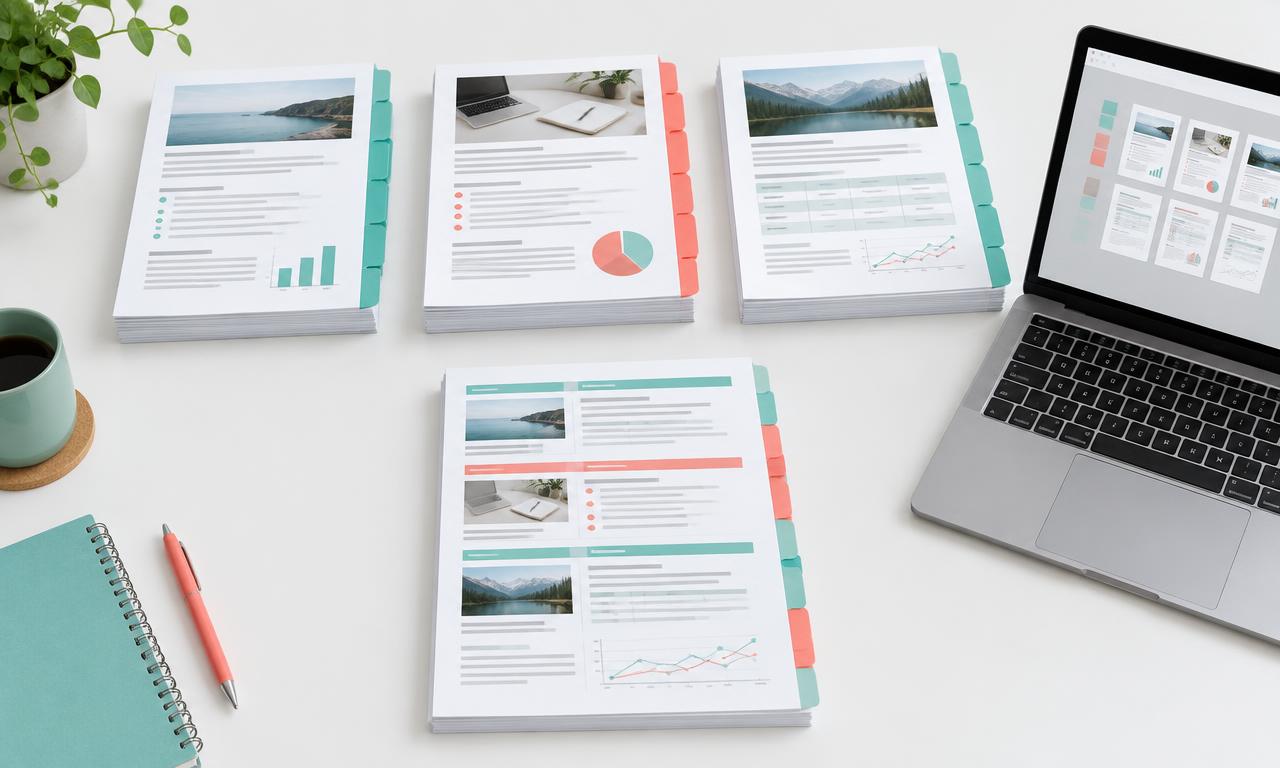
To merge PDF files, open Merge PDF, choose at least two PDFs, arrange them in the order you want and select Merge PDFs. Download the combined document and check its pages before sharing it. You do not need an account.
This is useful when an application asks for one document but your cover letter, supporting records or scanned pages are saved separately. Merging joins the pages into one PDF. It does not summarize the documents or turn their contents into a new layout.
Decide the order before you begin
Make a short list of the documents you need and the order in which the reader should see them. For a submission, follow the receiving organization's instructions. For a report, you might place the cover first, the main report next and supporting material last.
Open each source PDF and check that it is readable and contains only the pages you intend to include. Keep the original files. If you only need some pages from a longer document, use Split PDF first and merge the resulting PDF with your other files.
How to merge PDF files with iConvertFile
- Open Merge PDF and choose at least two PDF files from your device.
- Review the file list. Use the up and down arrows beside a file to move it earlier or later. Remove any file you do not want to include.
- Select Merge PDFs and keep the tab open while the document is created.
- Download merged.pdf, open it in a PDF viewer and review the page order and contents.
The order of the files in the list determines the order of the finished document. All pages from the first file come first, followed by all pages from the second file, and so on. Pages within each source PDF keep their existing order. Moving a file is not the same as moving an individual page inside it.
Check the result before sending it
Count the pages in your original PDFs and compare that total with the merged document. If one file has two pages and another has three, the result should contain five pages. Check the boundary between documents too, since that is an easy place to notice a missing or misplaced file.
Review the first page, last page, text and any important diagrams. Pages can retain different sizes and orientations, so a portrait document and a landscape document may not look uniform after merging. Merging also does not automatically remove duplicate or blank pages.
If a page is sideways, Rotate PDF can help. If you need to add a visible signature, finish arranging and reviewing the document before using Sign PDF. A visible signature added by that tool is not a cryptographic digital certificate.
Merging does not guarantee a smaller file
Combining documents is different from compressing them. The merged PDF contains the pages from your source files, and its size can differ from their combined size. If the receiving website has a maximum file size, check the actual downloaded file.
You can try Compress PDF afterward. It may reduce suitable embedded photos while keeping text selectable, but it cannot guarantee a particular size. If it cannot produce a smaller result, it returns the original file. Review photo and scan quality before submission.
Where does PDF merging happen?
iConvertFile's Merge PDF tool creates the combined document in your browser. This tool does not have a server fallback, so the PDF contents are not uploaded for merging. Your device still needs enough memory to read the source files and create the output. On a first visit, an internet connection is needed to load the site and its conversion software.
Each source file must be no larger than 1 GB. That is a file acceptance limit, not a guarantee that a phone or computer can handle a document of that size. If a large set cannot finish, try smaller groups or a device with more memory. Keep the original PDFs until you have checked the complete result. See our Privacy page for the wider site's file handling information.
What if a PDF cannot be merged?
A password protected PDF must be unlocked before this tool can read it. Only remove protection when you have permission to do so. Unlock PDF is a separate tool that uses server processing when available, so check its processing information before selecting a sensitive document.
A damaged file or a file renamed with a .pdf extension may also fail. Try opening it in a trusted PDF viewer or obtain a fresh copy from the sender. Scanned PDFs can be merged because merging copies pages rather than recognizing their words, but merging does not make scanned text selectable.
Do not assume interactive forms, bookmarks, attachments or digital signature validity will survive merging. This tool copies pages into a new document rather than preserving every document level feature. For a signed or legally significant PDF, keep the signed original and follow the receiving organization's requirements.