Image guide
How to resize an image without stretching it
Resize a photo to the dimensions you need, keep its proportions and understand the difference between pixels and file size on phones and computers.
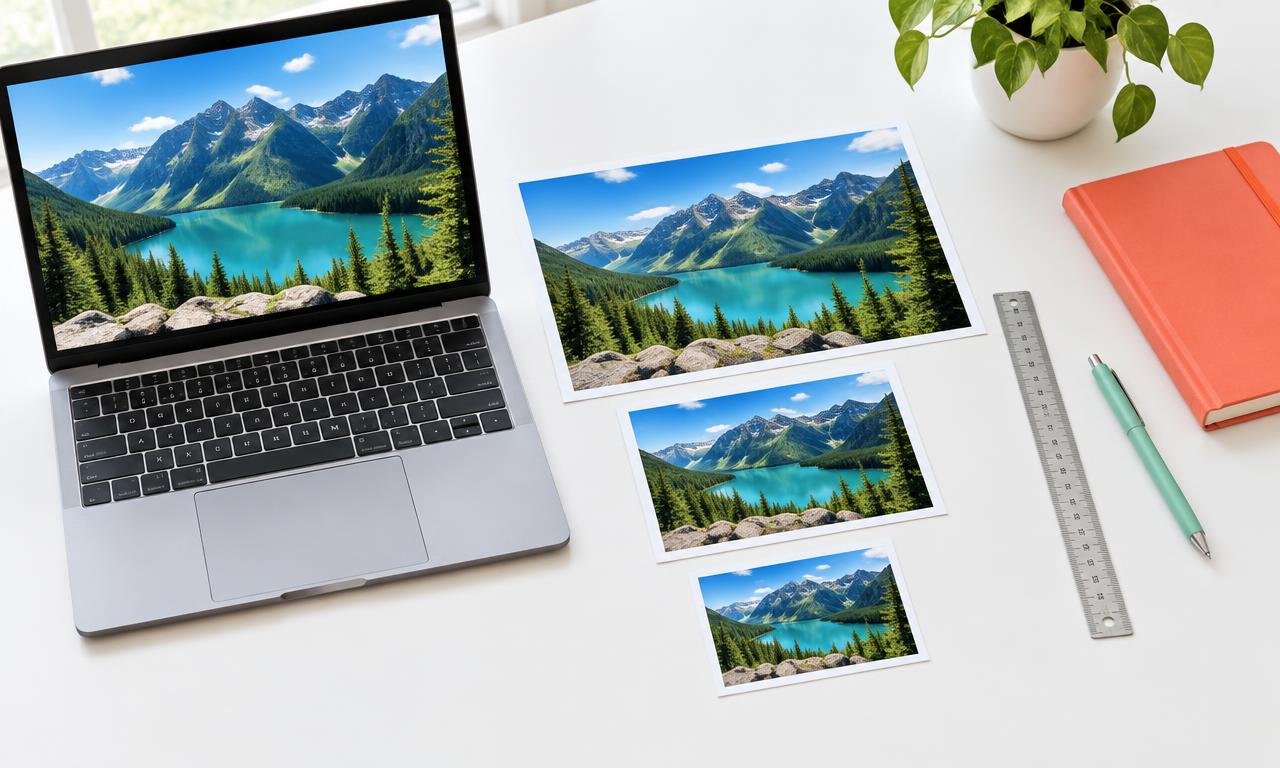
To resize an image, open Resize Image, choose your picture and enter the width you need in pixels. Keep Lock aspect ratio selected to preserve the original proportions, then export the image and download the result. You can do this in a modern browser on a phone, tablet or computer without creating an account.
Resizing is useful when a photo is too wide for a website, an application requests specific dimensions or you want a smaller picture for sharing. The important first step is knowing whether the requirement is about dimensions, file size or both.
How to resize an image with iConvertFile
- Open Resize Image and select your photo or graphic.
- Enter the required width in the Width field. The unit is pixels, not centimeters or kilobytes.
- Keep Lock aspect ratio selected so the other dimension updates automatically. Unlock it only when you intentionally want a different shape.
- Choose a save format, select Export image and keep the tab open until the result is ready.
- Download the resized picture, open it and check its dimensions and appearance before sharing it.
Keep the proportions to avoid stretching
An image's aspect ratio is the relationship between its width and height. A photo that is 2400 pixels wide and 1600 pixels tall has a 3:2 ratio. Reducing its width to 1200 pixels while keeping that ratio produces a height of 800 pixels.
Entering 1200 for width and 1200 for height would force that rectangular photo into a square and stretch its contents. If you need a square without distortion, use Crop Image to choose a square area first, then resize it. Cropping removes part of the picture; resizing changes its pixel dimensions.
Pixels and kilobytes are different requirements
A requirement such as 600 by 400 pixels describes dimensions. A requirement such as under 100 KB describes the saved file size. Two pictures with identical dimensions can have very different file sizes because their formats, compression and visible detail differ.
Resizing to fewer pixels often reduces file size, but it does not guarantee a particular number of kilobytes. If you only need a smaller file, try Compress Image. If a form requires both exact dimensions and a maximum size, use Upload Ready and check the actual saved output against those requirements.
Can you resize without losing quality?
Reducing dimensions removes pixels, so some detail is lost. Start with the original image, resize once to the dimensions you actually need and inspect small text, faces and fine edges. Keep the original in case you need a larger version later.
Making a small picture bigger does not restore missing detail. It can make edges and text look soft. For printing or a large display, a higher resolution original is usually better than enlarging a tiny copy.
Resizing on a phone, Windows or Mac
On a phone or tablet, open the tool in your browser and choose a picture from your photos or files. If your phone offers a reduced size version during selection, choose the original when possible. Save the result through the download button, then find it in your browser downloads or Files app.
On Windows or Mac, choose the image from your computer, enter the width and download the resized copy. Windows Paint and Mac Preview also have built in resizing options if you prefer a desktop application. In either workflow, preserve the proportions unless you deliberately want a different shape.
What format will the resized image use?
The Resize Image workspace offers JPG, PNG, WebP and AVIF. Original keeps those supported input formats and uses JPG for other inputs. PNG, WebP and AVIF can retain transparent areas; JPG saves them on white. You can choose your output format before exporting.
This is a still image workflow, not an animation resizer. Do not expect animation or the original camera metadata to carry over. For website delivery, you can convert the finished picture with PNG to WebP, JPG to WebP or JPG to AVIF.
Where does resizing happen?
This image workspace crops, rotates and resizes on your device without a server fallback. Your picture is not uploaded for these edits. Your device still needs enough memory to process the image, and an internet connection is needed to load the site and its conversion software. Our Privacy page explains the wider site's file handling.
Why does a resized image look wrong?
If faces look stretched, enable Lock aspect ratio or use dimensions with the same aspect ratio as the original. If the picture looks blurry, reduce the enlargement or start from a sharper source. If a form rejects it, check both the downloaded dimensions and file size, plus the format the form accepts.
Very large images can exceed a phone's available memory. Try a smaller original or a computer with more memory. Renaming a file extension does not repair a damaged picture or convert its format, so keep a readable original and check every finished download.